Move: Face
Faces can be moved in directions parallel to the face's normal vector. It is possible to move the selected face on its own or all the faces that are parallel to it and in the same plane.
A face can be moved only if it is selected. A selected face is indicated by a red line in the 3D view.
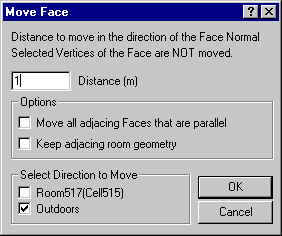
Distance specifies how many meters (positive number) the face is to be moved.
Options:
Move all adjacent Faces that are parallel makes it possible to choose whether all other faces in the model that have a normal vector parallel to the face's normal vector and are in the same plane are to be moved with the current face.
Keep adjacent space geometry will leave the geometry of all adjacent spaces unchanged.
By deselecting both possibilities and in advance selecting one or more vertices, these vertices will not be moved together with the rest of the face. This is a simple way to create sloping faces or irregular spaces.
The direction of movement is selected under Select Direction to Move, where it is possible to choose between the two spaces on either side of the face, in this case Space0 and Outdoors.