tsbi5 - Simulation
The Simulation tab has two buttons – one to start the simulation and one to stop it. It also contains a graph, which displays the outdoor temperature and the operative temperature in the model's thermal zones continuously.
The order in which the thermal zones are simulated is given by their order in the tree (top-down). It is possible to change the simulation order of the thermal zones by re-organizing (drag and drop) the order in the tree to the desired order.
This may be important if an air-flow (mixing) is to be simulated from one thermal zone to another and then on to a third. If the temperature in the first thermal zone drops because of Venting, the air-flow to the following zones might stop because of a mixing set-point.
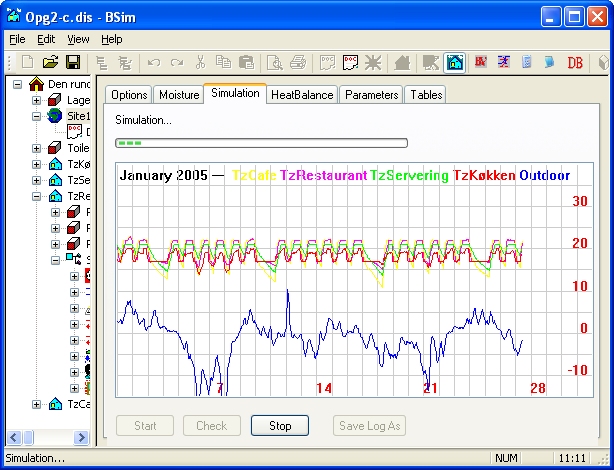
At the top of the interactive graph the name of the currently simulated month and - in colors matching the graphs - the names of the 5 first (counted from the top of the tree structure) thermal zones in the model plus the outdoor temperature.
It is possible to change the order of the thermal zones by dragging them to a new position in the tree structure.
Below the interactive graph of the ambient and the thermal zone temperatures four buttons are found:
The Start button initiates the simulation beginning with the first date of the simulation period given at the Options tab. Note it is not possible to carry out a tsbi5 simulation if the ModelList window is open or closed as an icon.
The Check button runs a syntactic check of the model to see if all necessary information to carry out a simulation is present. Eventual missing data will be reported in the ModelList window. No error messages do not, though, mean that the model is correct, but only that all necessary information to carry out a simulation is given. This function is also called whenever a simulation is initiated from the Start button. If the moisture model is active, information about the automatic sub-division of the material layers in the constructions is given.
The Stop button can be used to interrupt the simulation before the Last Day of the simulation period given on the Options tab.
When the simulation has ended, the Save Log As button can be used to save the current results file in a new name for later comparison with other results files of the same model exposed to parametric changes.
Below the buttons, information about the estimated remaining time to carry out the simulation for the given period is shown.
When the simulation starts, an initialization of the model is made and the real simulation will only start when the stability criterion is fulfilled or the maximum number of iterations/days is reached. The maximum allowed number of iterations can be given in the menu Edit | Options
If the maximum number of iterations/days is reached before meeting the stability criterion, the dialog below will be shown. The dialog also shows information about the parameters used for calculating the stability criterion.
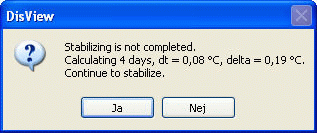
Pressing "Yes" will cause the initialization to continue though only up to the maximum number of iterations/days. This process can be repeated until the stability criterion is reached or can be interrupted when an adequate stability is obtained.
See also: