SimView - Editing the model geometry
The geometry of real buildings cannot always be described using simple boxes. It is therefore necessary to be able to edit the constructed geometry.
A face can be split by first splitting two of its edges. Do this by selecting an edge (easiest in the 3D view) — double-click or Shift+left-click the edge, then right-click and choose Split Edge. Repeat for the other edge(s) to be split. This action inserts a new vertex in the center of the edge. If one of the end points (vertices) is also selected, a dialog appears allowing the user to enter the distance from that end point to the new vertex (that is, the length of the new edge).
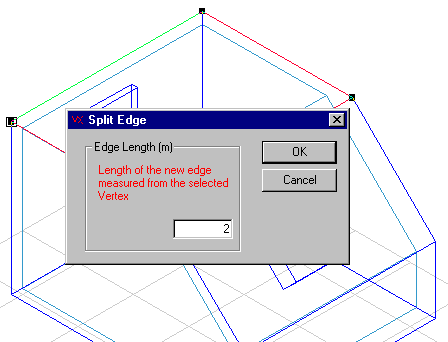
A similar approach can be used for the rest of the edges that are to be split.
If two new vertices are selected (double-click or Shift+left-click) in the same face, an edge can be added between them using the Add Edge command from the SimView menu.
With this method the edges are split in the middle, which is not necessarily desired. Select the face to be subdivided (3D view or tree summary); the new and old vertices will be displayed as black squares. Right-clicking a vertex opens a dialog that allows the X, Y and Z coordinates to be edited so the vertex can be moved to the desired location.
Now the face can be split by selecting the face and the two new vertices, then right-clicking and choosing Split Face. If the geometric view with construction thickness has been chosen, the new face will appear with a thickness of zero because no construction has been attached. You can attach a construction to the new face as described above.
The split face will now consist of a face and an opening. You can attach face properties to the opening by selecting it and then choosing the Add Face option from the SimView menu.
Alternatively, select the two vertices and use the Add Edge option from the right-click menu to split the surface along the line connecting them.
Existing faces can also be moved in parallel with the face's normal vector.
See also: