tsbi5 - HeatBalance
The HeatBalance tab contains a summary of the individual components of the heat balance.
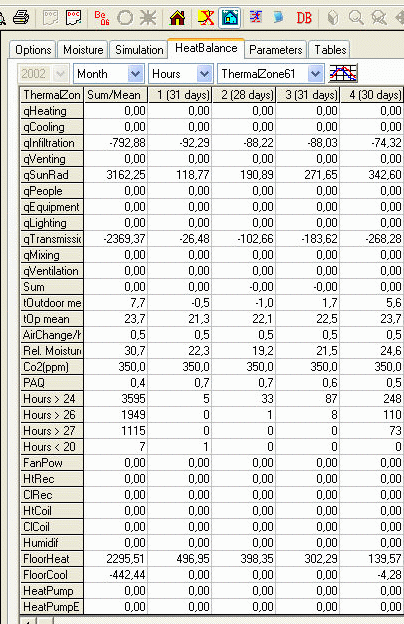
At the top of the tab there are four drop-down list boxes in which the options for displaying the heat balance can be selected. The left-hand list box is used to give the year to show. This option is only available if a period of more than one year has been simulated. In the second drop-down menu it is possible to select the resolution for the displayed period, i.e. whether the heat balance should be calculated per week or per month in the columns. The middle list box is used to change between hours and percent when counting hours over and above certain temperatures (see rows labeled: Hours > 21, Hours > 24, Hours > 26 and Hours < 20). The temperature limits for the count can be changed on the Options tab. Counting is performed during simulation and it is thus not possible to extract the number of hours inside a certain time definition, e.g. working hours. If this is needed, it must be done at the Tables tab. The temperature limits for counting hours can be changed on the Options tab. The right-hand menu is used to specify whether the whole building (TotalBuilding) or just a single thermal zone is to be displayed in the cells below.
The first column always shows a total for the entire period simulated. The subsequent columns show the heat balance by the week or month.
It is possible to save the content of the heat balance table in an external text file for further analysis, e.g. in a spreadsheet tool, by pressing "Alt + X" and then selecting the name and location for the text file.
An explanation of the individual parameters in the heat balance is found in Parameters in the heat balance.
At the top right of the tab there is a button that calls up a graphical presentation of the results in the form of a bar graph.
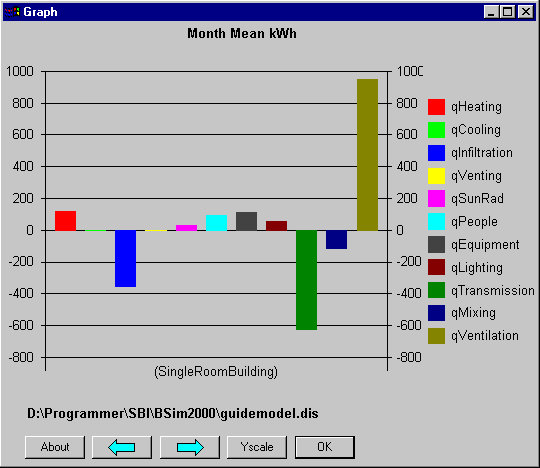
If a single column is highlighted the presentation of the results will start with data from that column. At the bottom of the window containing the graph of the results there are four buttons with the following functions (from left to right):
Display information on the ActiveX application, which is used to display the results in graph form.
Go to previous period - if period 1 is being displayed, the graph will change to the total for the period simulated.
Go to next period
Yscale opens a dialog for fixing the Y-axis or changing the view of the graphs.
Close the graphical presentation of the results.
Right-clicking the graphical results opens a dialog offering the possibility of modifying the graphical presentation of results.
See also: