tsbi5 - Parameters
The Parameters tab contains lists of the parameters that have been saved on an hourly basis during the simulation for subsequent analysis.
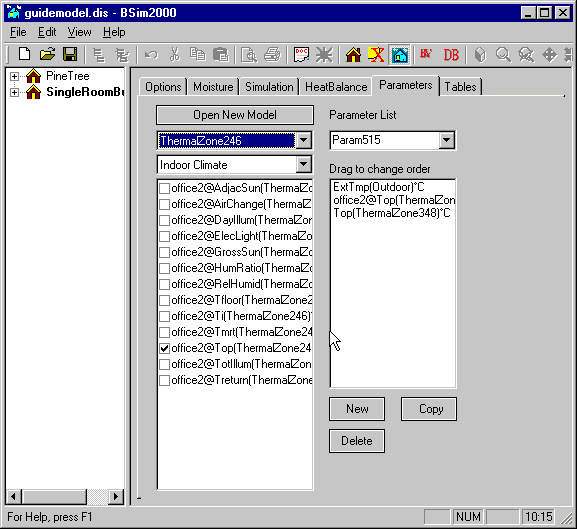
The drop-down list box at the top left of the tab is used to select different groups of parameters, which are displayed in the list immediately below. Here the individual parameters can be checked in the box next to them. This will bring the selected parameters up in the list on the right. Parameter lists can be saved under a name. The drop-down list box at the top right of the tab contains the existing parameter lists, and a new list can be created by clicking the New button.
There is no limitation on the number of parameters in a parameter list - however it is recommended that the number is kept low as the graphs will be difficult to read with too many parameters. The parameter list is saved when one changes to another tab in tsbi5. If one changes directly to SimView or XSun, the parameter list is not saved.
The button Open New Model gives the opportunity of selecting results from other models to be shown in the same table or graphic representation. The foreign models must be located in the same folder as the current model. It is possible to distinguish between the different model parameters by the preceding model_name@ at each parameter (see the parameter list at the left in the figure above).
Result files from simulations with SimPV can be analyzed using the normal result analysis functions. These result files are named as model name#pv. Results occur as two parameters (qPvGross and qPvNet) at all constructions with solar cells. There must thus be a check-mark next to Constructions at the Options tab to be able to see these parameters.
If a simulation over several years has been performed, results from each year will occur as individual result files. These result files are named after the model followed by a "#yy", where yy are the last two digits of the year. tsbi5 automatically shows the first year in a series of years. Additional years must be opened as individual result files.
Parameters from other models will be removed automatically when leaving the tab, if parameters from the model do not occur in a parameter list.
The existing parameter list can easily be modified by double-clicking an entry in the list (window at the right of tsbi5). This changes focus to the actual parameter in the global parameter list (window to the left in tsbi5) and the tick-mark can be removed manually.
If results from Construction are chosen to be saved on the Options tab, a group with these data will occur in the results log. The results contain calculated temperatures from the surfaces and in all nodes in the constructions. This means that the parameters T1, T2, T3 etc. indicate the node temperature counting from face 1 of a construction. The surface temperatures are denoted SurfTmp1 and SurfTmp2 for surface 1 (normally inside) and surface 2 (normally outside). Data for the relative humidity in the constructions will only occur if a database with moisture information on the building materials has been used.
Below the parameter list three buttons are located: New, Delete and Copy. The buttons are used for creating a new, empty parameter list, deleting the current list and making a copy of the current list.
See also: