WinDoor Property
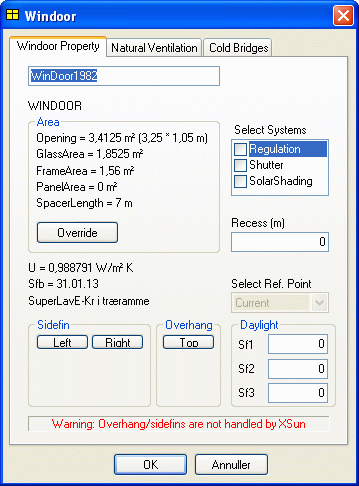
The Area field displays the information that the software has calculated from the opening's geometry and information from the database. The calculated quantities are: the area of the opening (Opening), the area of the glass (GlassArea), the area of the frame (FrameArea), the area of the panel (PanelArea), which is used in connection with simulating doors, and the length of the spacer profile (SpacerLength).
Please note that, the first time the dialog box is opened, the message Impossible Geometry will appear instead of SpacerLength and a stop sign will be displayed to the right of the Override button if the opening is not a rectangle or if the window was not selected from the database. The area of the frame and panel and the length of the spacer profile can be changed by clicking the Override button. The information fields in the dialog box describe the area of the opening, which face it belongs to, the U value for the attached WinDoors, and its entry in the database.
The message Impossible Geometry may also be caused by a wrong location of the actual Windoor, stretching into the Inner Shell, i.e. the constructions of the faces that meet the face that contains the Windoor. This can occur if the thickness of the constructions is increased, e.g. by selecting new constructions from the database. It is not possible to run a simulation when impossible geometry is shown for any Windoor.
The following characteristics can be defined to describe a WinDoor:
Recess (m): The retraction of the glass in relation to the outside of the wall in meters. If Recess = 0 is given, shading will be calculated as if the glazing was located parallel to the inner face of the construction. If the glass is to be placed parallel to the outer face of the construction, a small value (larger than 0.0001) must be given. NB: Recess only works if XSun solar distribution is turned on.
Select Systems: It is possible to select three systems to be linked to the WinDoor object:
Regulation (of natural ventilation)
Shutter (for night insulation)
SolarShading (for reducing the risk of overheating).
These systems are defined by right-clicking the objects in the tree summary, which will open the relevant dialog box.
DayLight: Here three solar light factors can be defined for the window (Sf1, Sf2 and Sf3) manually. The solar light factors can be calculated and transferred automatically to the WinDoor dialog from SimLight.
Side and Overhang: The local geometry surrounding the object can be described by clicking the Left, Right and Top buttons, which open dialog boxes for defining the geometry of side fins and overhangs.
NB: Overhang and Sidefin now work in combination with XSun solar distribution but are not shown in XSun visualizations. If an overhang or side-fin is to be simulated using the XSun solar distribution these obstacles should preferably be defined geometrically in the model.
If Overhang or Sidefin is used in combination with XSun solar distribution, there is a risk of double shading on WinDoor and thus very reduced solar incidence on the model.
Based on this information the software calculates the frame area, panel area and the area of the caulking joint. The total U-value for a WinDoor is calculated in accordance with the instructions contained in the appendix to DS418 relating to the calculation of heat loss through windows and doors.
The dialog boxes for defining overhang and side fins describe the shadow source relatively in relation to the window using the distance from the nearest edge of the glass and the distance from the outside of the wall to the front edge of the shadow source.
The Daylight button allows three solar light factors to be defined for the window (Sf1, Sf2 and Sf3) manually. The solar light factors can be calculated and transferred automatically to the WinDoor dialog from SimLight.