System, Schedule
In the user interface the structure is reflected by the systems in the dialog boxes for the individual components, with all components having a Schedule tab, which defines the schedule to be used for the specific component.
The order of the control/schedule pairs (DayProfile/Time) on the summary tab is very important, with it being used in a simulation to determine which control action has to be used together with the current component. At a given time (at the beginning of each hour) the schedule is run through in the order in which it is shown on the summary tab. In the case of the first control/time definition pair where the specified time falls within the time definition, the relevant control action will be used together with its component. If, on the other hand, the specified time does not fall within any time definition in the schedule, the effect will be that the relevant component is not activated at all, so there will be no impact on indoor climate at the time in question.
The overall summary for a system can be viewed on the Schedule tab.
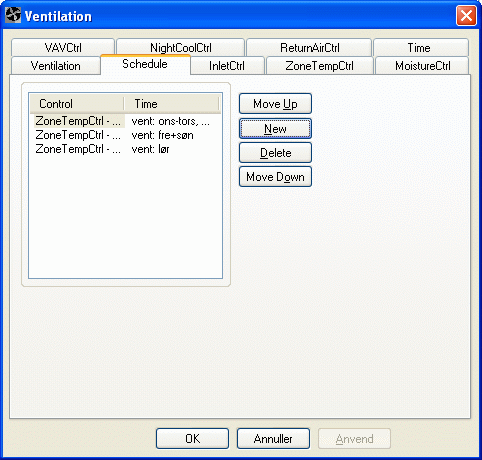
tsbi5 runs through the list from the top (see example below), so the ability to change the order of the systems can be useful. This can be done by clicking the "Move Up" and "Move Down" buttons.

It is thus only the control associated with the first met time definition (marked with a thick line in the figure above) that will come into action in tsbi5. The control associated with the time definition Always will only be used in the period not "occupied" by any previous time definition located higher in the schedule table.
Time definitions covering the whole year (simulation period) must be located as the last entry in the table. Such a definition is normally used to "catch" periods that fall outside the rest of the time definitions for the system.
See also: