Chart Wizard

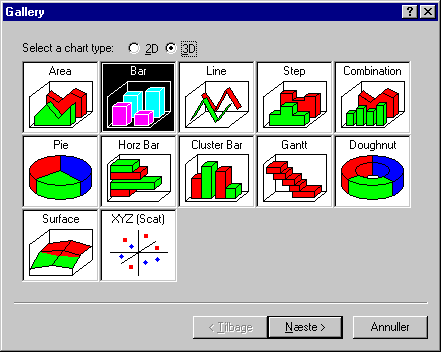
Using the built-in templates (Wizard) to change the appearance of the graphics is a fast and reliable method. It is possible to choose between 2D and 3D graphics in the first dialog box.
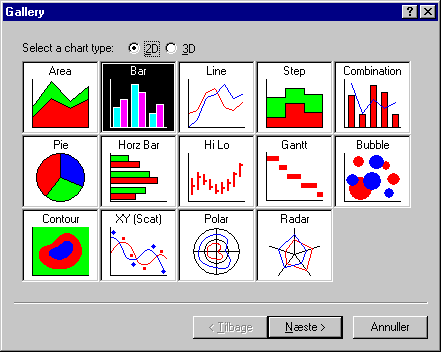
Dialog box for choosing between various 2D representations of results.
Dialog box for choosing between various 3D representations of results.

When a new representation of the results is chosen, a dialog box offering various options appears.
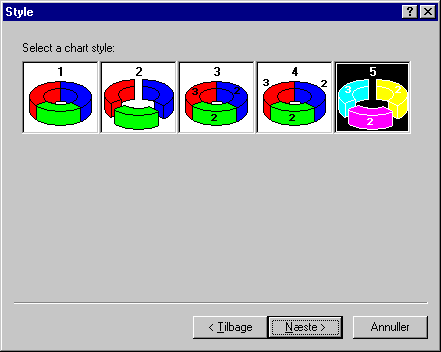
Dialog box for detailed structure of the chosen representation.

Various options are normally available for the presentation of the chosen graph type.
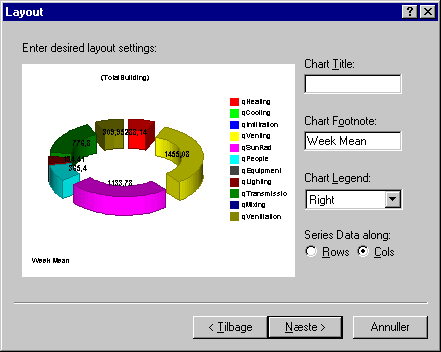
Dialog box showing an example of the final graphical representation of data, including the options of assigning a new title (Chart Title), creating a footnote (Chart Footnote) and positioning the key (Chart Legend).

The last tab shows an example of the presentation of data before the choice is made by clicking the Finish button.

If the changes to the appearance of the graph need to be cancelled, it is possible to go back to the start by clicking Reset Chart To Defaults on the first tab in Chart Designer.

See also:

results matching ""

    No results matching ""