Chart Designer
In the Chart Designer dialog box it is possible to modify the general layout of the current graph. It is advisable to use Wizard, however, to change the appearance from a bar diagram to a pie chart, for example. For every option on the left of the window there are a number of tabs on the right, which allow the data relating to the option to be changed.
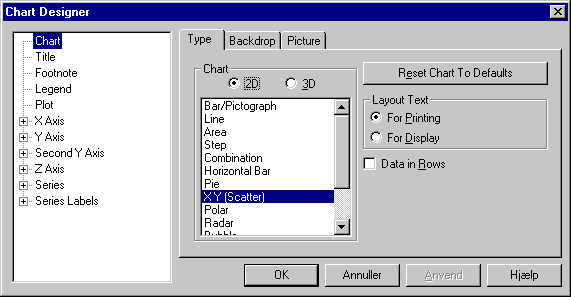
In Chart it is possible to change the type of graph and the background for the entire area of the graphical presentation, e.g. a color or a graduated color can be assigned to the background from the Backdrop tab or an image can be selected as a background from Picture.
The Type tab under Chart contains the Reset Chart To Defaults button. Clicking this button resets the settings for the chart to the defaults defined for the graphics.
The title of the graph can be modified in Title: Position on the graph (Location), text background (Backdrop), background image (Picture), orientation and justification (Layout), title (Text) and font (Font).
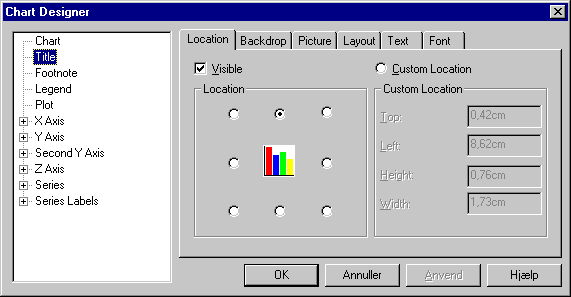
Information on the key to the graph can be modified in Legend. This dialog box has by and large the same structure as the Title dialog box.
The background of the graph itself can be changed in Plot. The options are otherwise the same as described for Chart.
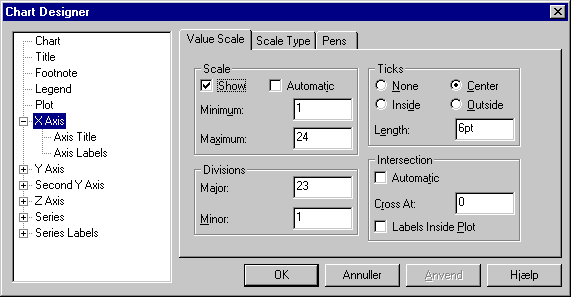
The X Axis, Y Axis, second Y Axis and Z Axis options allow the appearance of the graph's axes to be modified. On the first tab (Value Scale) it is possible to modify the graph's drawing limits (Scale), the number of subdivisions (Divisions), the position and size of the marks for subdividing the axes (Ticks) and where the second axis intersects with the current axis, e.g. where the Y-axis intersects with the X-axis (Intersection).
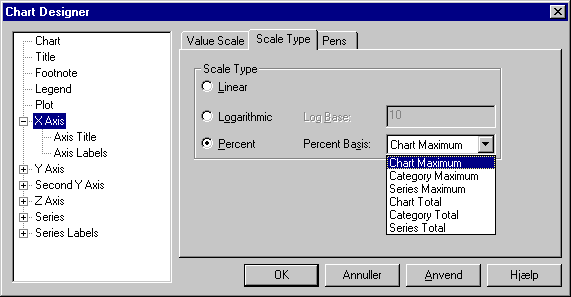
On Scale Type it is possible to select the axis type. There is a choice between linear, logarithmic and percent. For a logarithmic axis it is possible to choose the base for the logarithm (e.g. 10 or e). For a percent axis it is possible to choose between a percentage representation in relation to a number of different totals (see figure).
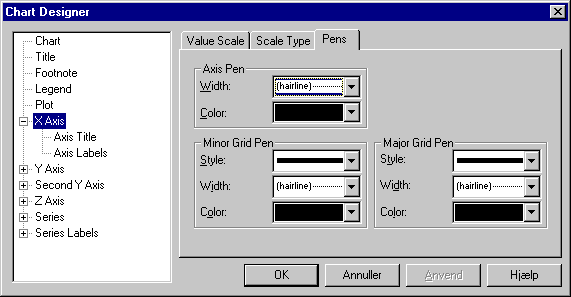
The line types for the axis (Style, Width and Color) can be changed on the Pens tab. The axes are divided into three groups: the axis itself (Axis Pen), subdivisions of the axis divisions (Minor Grid Pen) and the main divisions of the axis (Major Grid Pen).
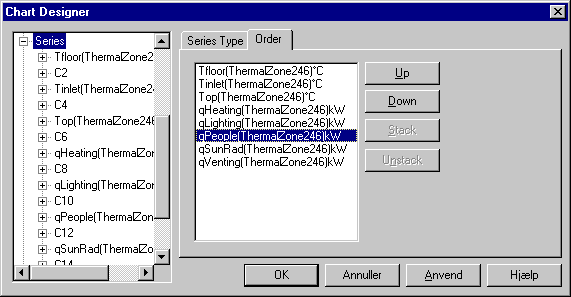
The Series option allows the appearance of the individual data series to be modified. In the main Series option itself the graph type of an individual series can be changed for certain types of graph, and the order of the individual series can be changed.
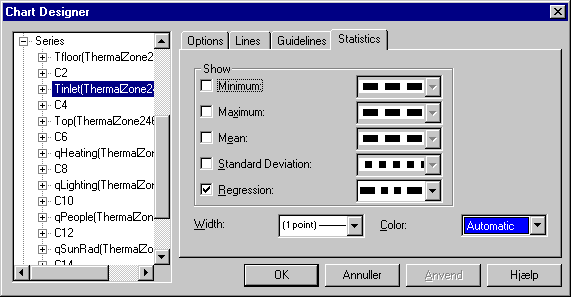
Clicking on the name of the individual series (see figure) brings up four tabs (Options, Lines, Guidelines and Statistics) on which various settings for the individual series can be changed.
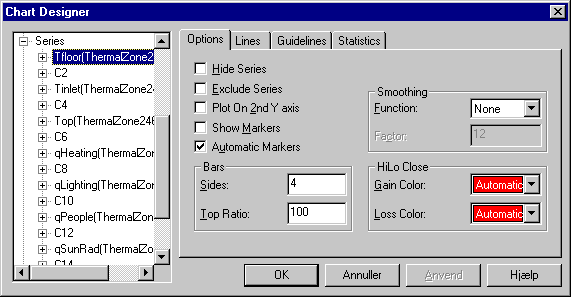
In Options the series can be hidden (Hide Series) or excluded from data (Exclude Series). It is also possible to plot a series on the secondary Y-axis, thereby improving the resolution of some series, e.g. by plotting on a secondary Y-axis that only displays values between 0 and 500 kWh (only works for bar charts as in the heat diagram, for example). See formatting of secondary Y-axis.
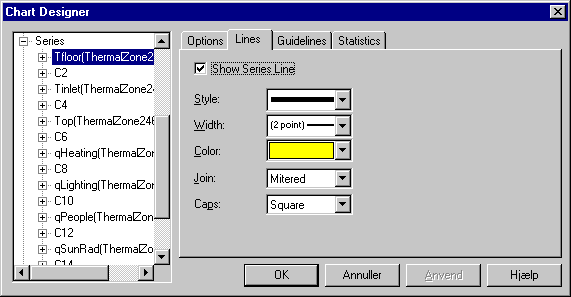
The appearance of an individual series can be changed on the Lines tab. The line type (dashes, dots or dashes and dots) can be changed in the Style list box, the Width is specified in points, and the color can be selected from the Color list box. There are eight different styles to choose from to make it easier to differentiate between the different parameters when the graphics are reproduced on a black and white printer.
On the Statistics tab it is possible to select the statistics to be displayed for the individual series in the graph. Selecting a point in the Show dialog box draws one or more horizontal lines to mark the values on the Y-axis. The options along the graph's X-axis are: minimum value (Minimum), maximum value (Maximum), mean value (Mean), standard deviation (Standard Deviation) and a linear approximation of the plotted points (Regression). It is also possible to select style and color for the individual statistical variable.
If the changes to the appearance of the graph need to be cancelled, it is possible to go back to the start by clicking Reset Chart To Defaults on the first tab in Chart Designer.
See also: